

How to Create Add-On Offers
This guide provides a step-by-step approach to support add-on style purchasing in Cleeng using standard offers, custom offer parameters, entitlement checks, and storefront logic.
Benefits
Add-on offers help D2C (Direct-to-Consumer) services increase average revenue per user (ARPU) by offering complementary content or features at a discounted rate to existing subscribers. They create a natural upsell moment that deepens engagement and reduces churn by giving customers more reasons to stay.
When executed well, add-on offers drive incremental revenue without cannibalizing standalone pricing, while keeping the commercial logic - discounted pricing tied to a qualifying base offer - clean and enforceable through metadata.
Example scenario
A streaming service offers Premium Monthly at €10/mo. Customers who subscribe to Premium can unlock a Channel Pack add-on at a discounted €5/mo (normally €8/mo standalone). The add-on is only visible after the customer proves they hold the qualifying base offer.
Premium Monthly
€10/mo
Channel Pack
€5/mo
Channel Pack
€8/mo
Solution overview
The recommended pattern is to model discounted add-ons as separate dedicated offers created in Cleeng at the lower add-on price. Each dedicated add-on offer remains hidden from the standard storefront catalog and is exposed only when the customer already holds the qualifying base offer.
This design keeps pricing, checkout, and entitlement management inside Cleeng while moving only the add-on eligibility logic to the implementation layer. Cleeng custom parameters are designed for flexible key-value metadata, are available in offer APIs under externalProperties, and are not shown in the UI unless the implementer chooses to display them.
Offer model
Create one standard Cleeng offer for each base product that can be purchased independently. Create one additional Cleeng offer for each discounted add-on price point that should become available after the qualifying base offer is active.
Add custom parameters to each discounted add-on offer:
add_on=truerequired_base_offer=<base_offer_id>visibility=hiddenadd_on_group=<optional logical grouping>corresponding_base_offer=<base_offer_id_for_full_price_version>
NoteCustom parameters are not rendered in the customer UI by default - they are suitable for storefront control logic. You can retrieve them through offer APIs as
externalProperties.
Prerequisites
- You have access to a Cleeng sandbox account for testing purposes.
- You have created a base offer (regular subscription) in the Cleeng platform.
- You have a storefront implementation that can read offer metadata and make API calls.
Step-by-step guide
Offer configuration
1. Create the base offer
If you do not have your base offer yet, create it. Log in to your Cleeng account. Go to Offers & Coupons > Offers and click Create offer. Select the Subscription tile and configure your base product with its standard pricing.
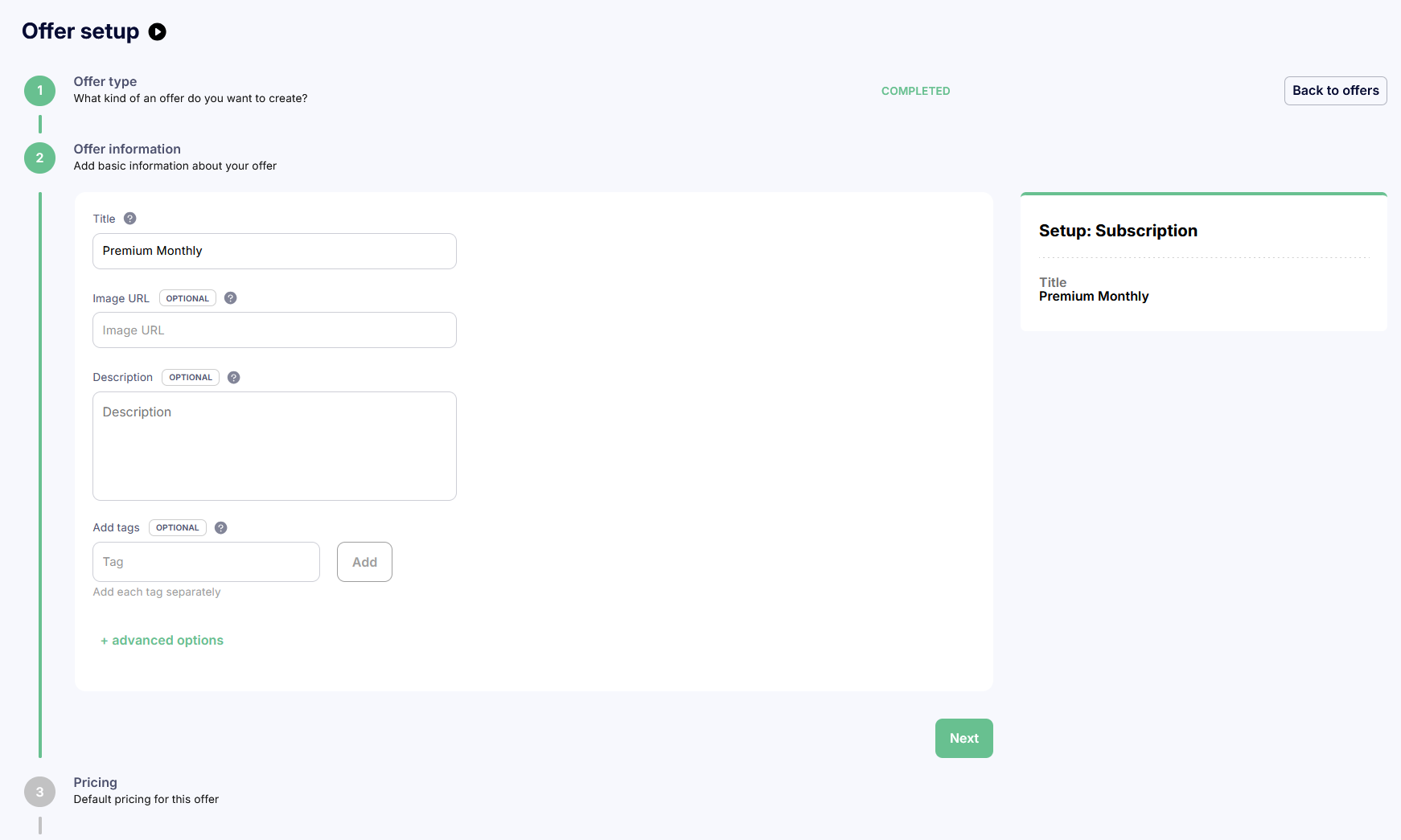
Cleeng Dashboard > Create base offer
Fill in the offer information - title, description - then configure pricing with billing period and price.
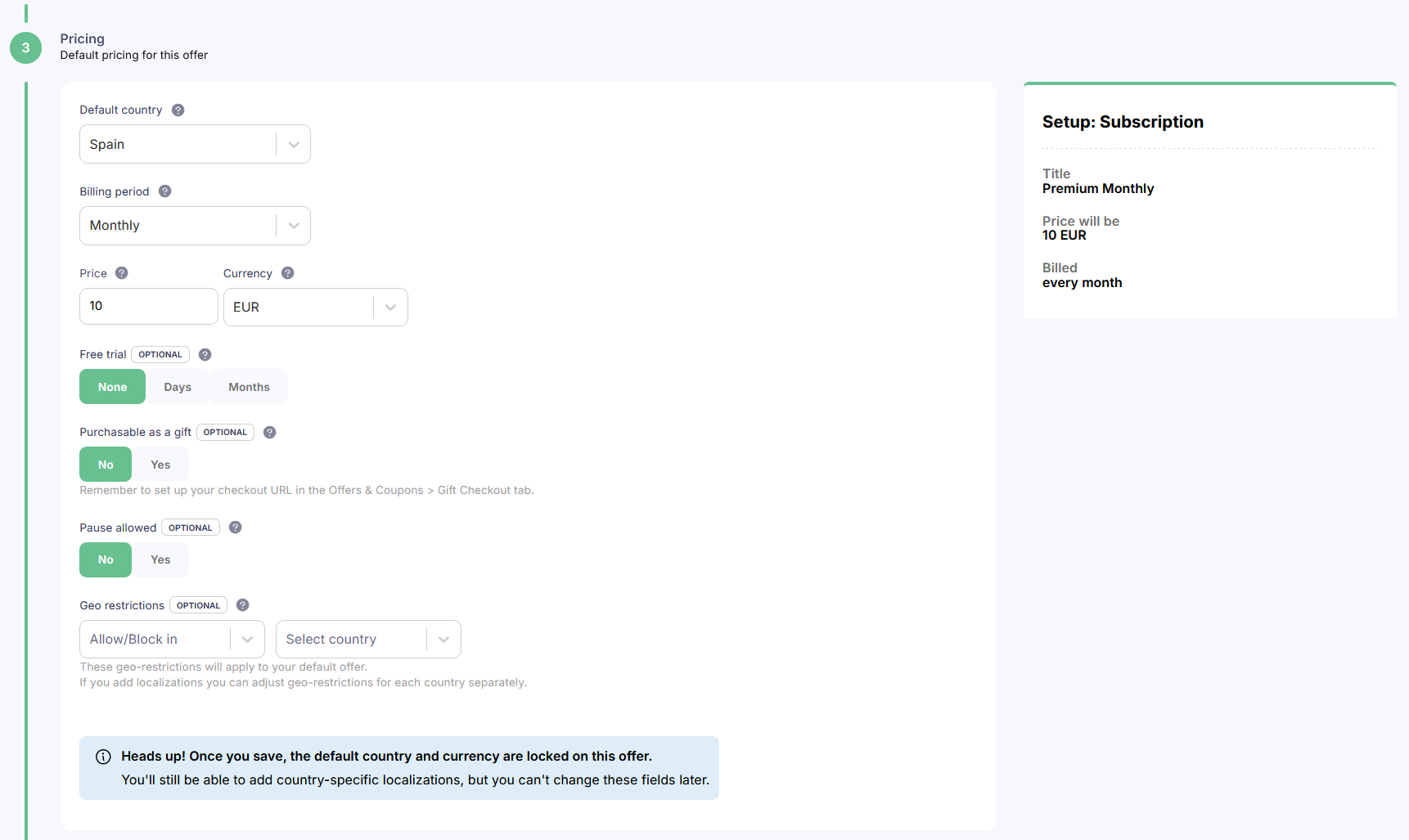
Cleeng Dashboard > Create base offer > Step 3: Pricing
2. Create the discounted add-on offer
Repeat the same process to create a second subscription offer at the discounted add-on price (e.g. Channel Pack at €5/mo). This is a fully independent Cleeng offer - there is no native "add-on" relationship.
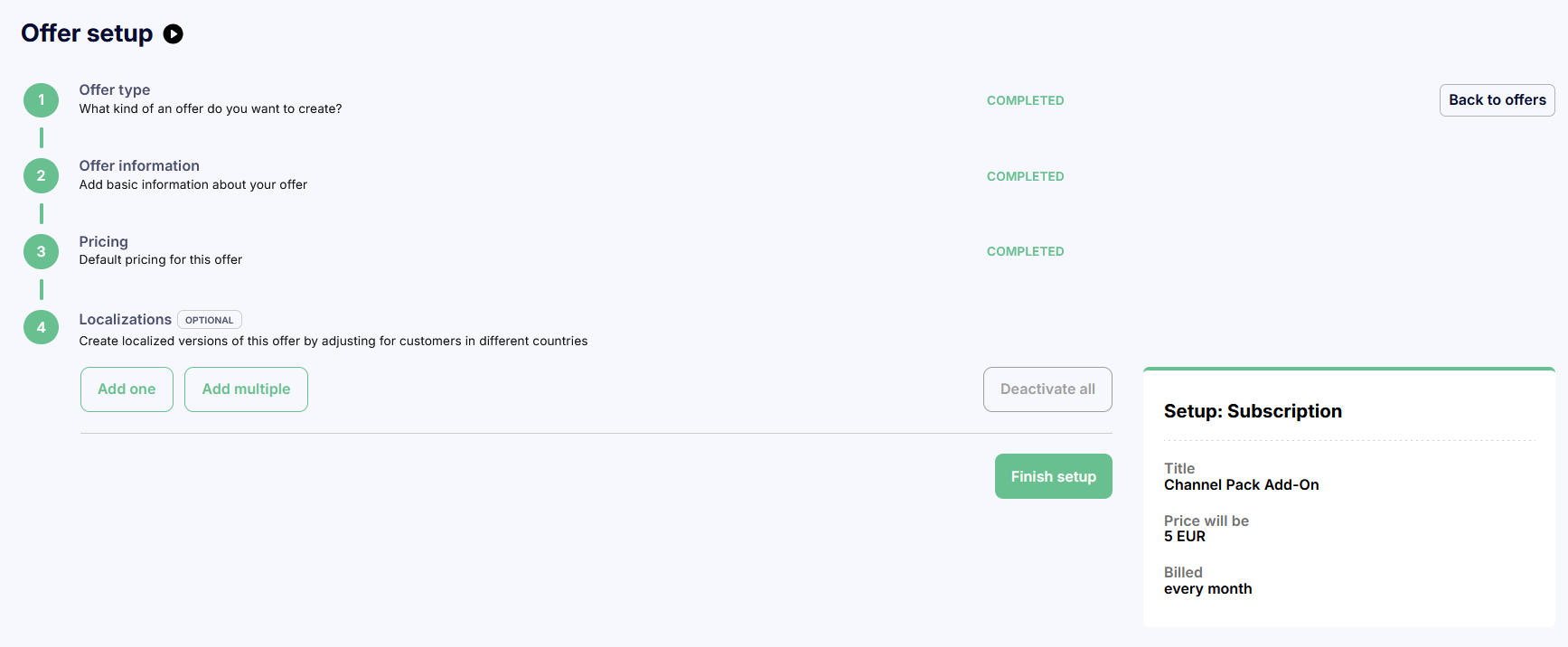
Cleeng Dashboard > Add-on offer review
NoteAfter purchasing the add-on offer, the subscriber will see its price and renewal date in the My Account component. The add-on appears as a separate subscription.
3. Add custom parameters to the add-on offer
In the offer setup, expand Advanced options > Custom parameters and add the key-value pairs that define the add-on relationship. These will be available as externalProperties in offer APIs:
add_on=truerequired_base_offer=<base_offer_id>visibility=hiddenadd_on_group=<optional logical grouping>corresponding_base_offer=<base_offer_id_for_full_price_version>
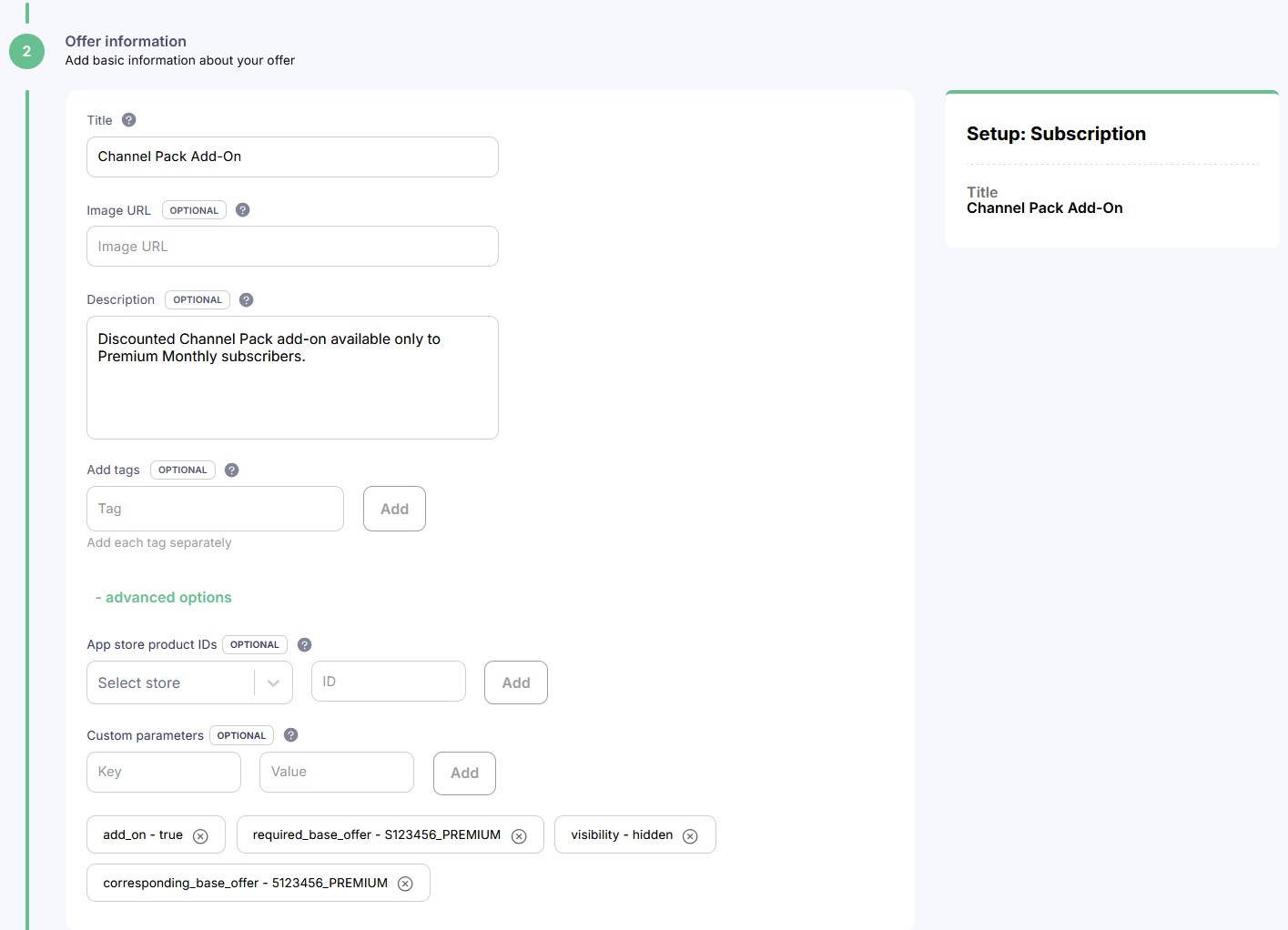
Cleeng Dashboard > Create offer > Custom parameters in Advanced options
4. (Optional) Create the standalone version of the add-on
Create a third offer if you haven't done it yet: the full-price standalone version of the same add-on product (e.g. Channel Pack at €8/mo). This is the offer customers will be switched to if their qualifying base subscription is cancelled. This offer should be visible in the standard catalog.
Note: A standalone version of the add-on offer is optional.
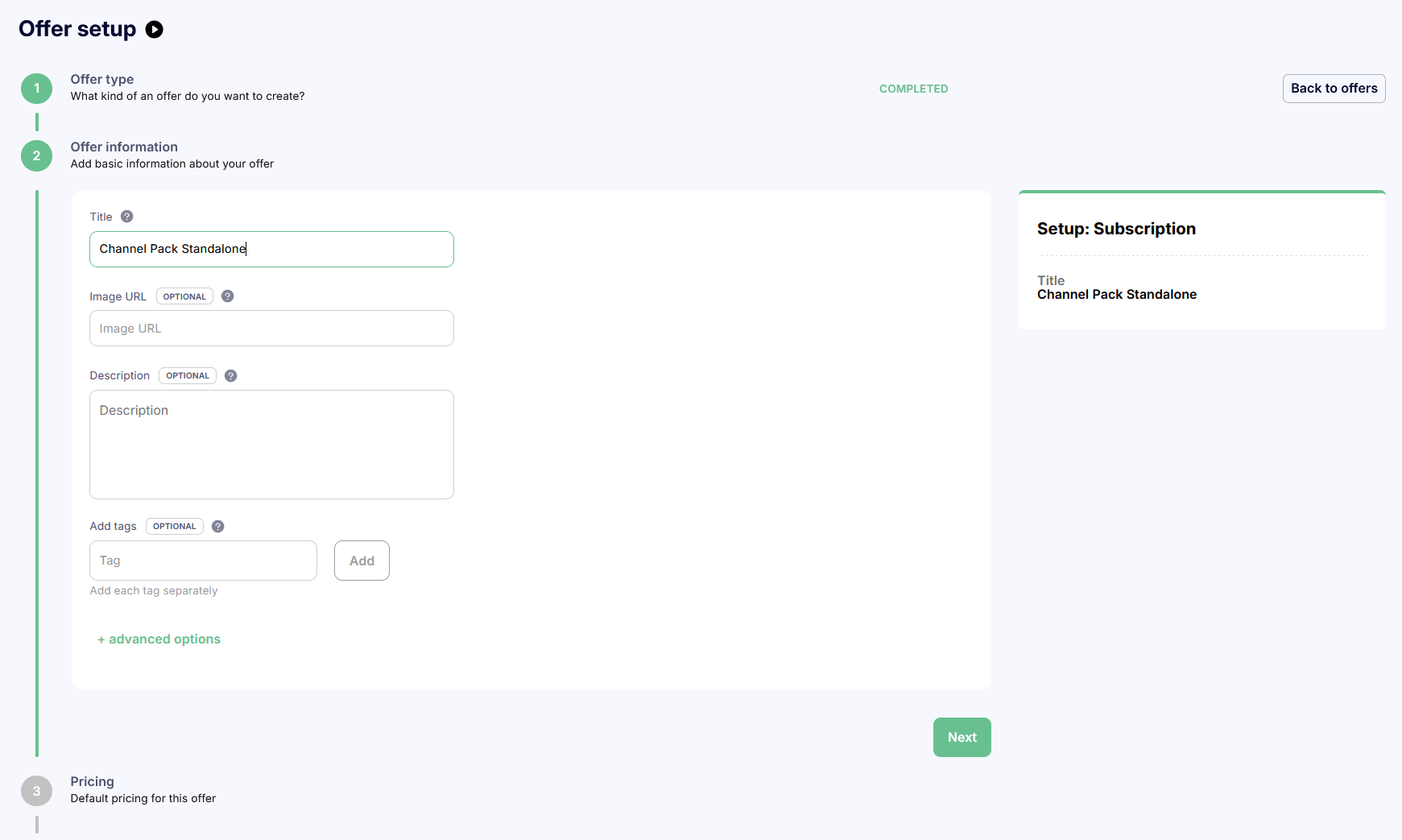
Cleeng Dashboard > Create offer > Channel Pack Standalone
5. Configure subscription switch path
Note: If you do not have a standalone version of you add-on offer, skip this step.
Navigate to the discounted add-on offer in the list of offers (Offers & Coupons > Offers), click the three dots menu, and choose Offer switching. Add the corresponding full-price standalone offer as a downgrade option.
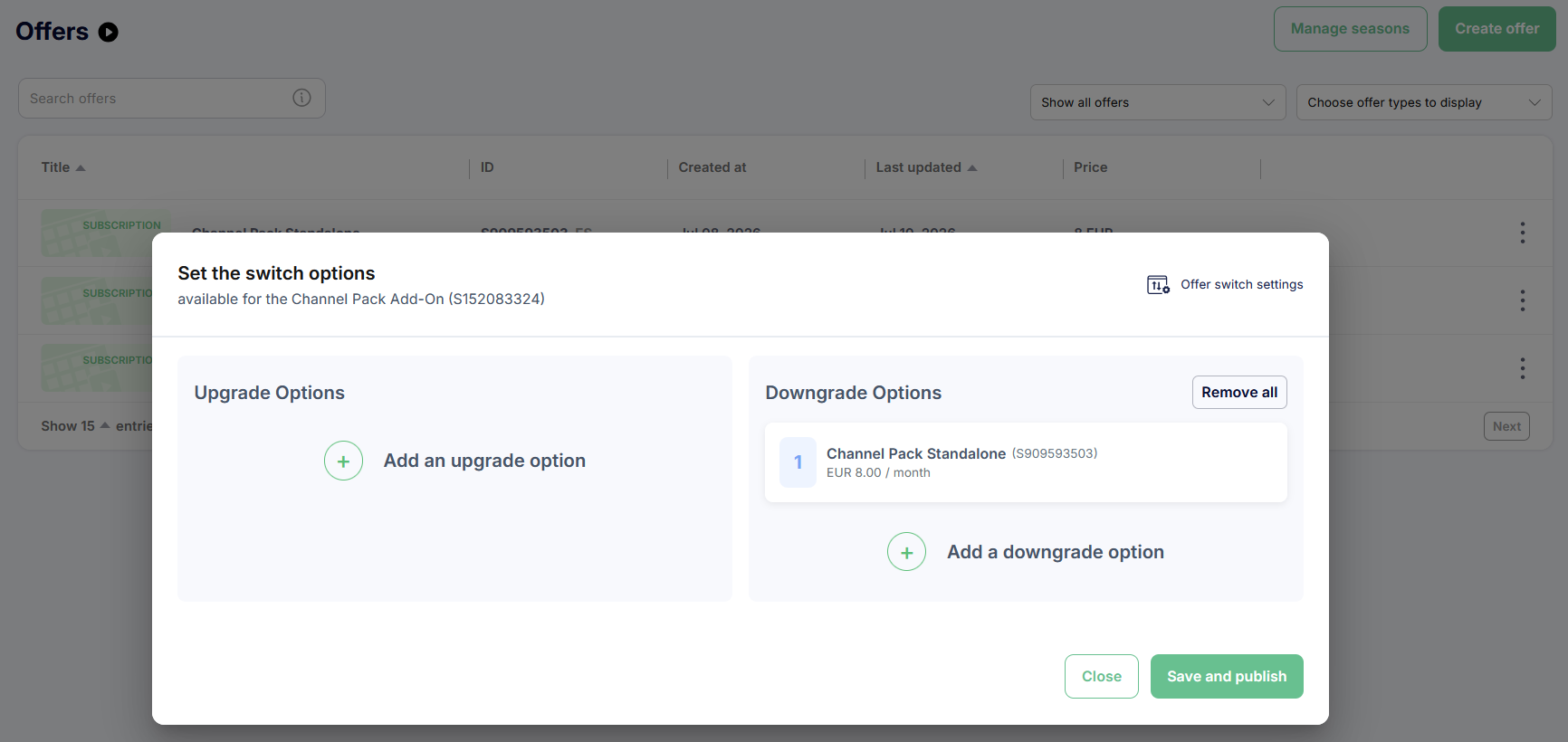
Cleeng Dashboard > Set the switch options > Downgrade options
Save your offer switch settings by clicking Save and publish.
6. Set switch algorithm to deferred
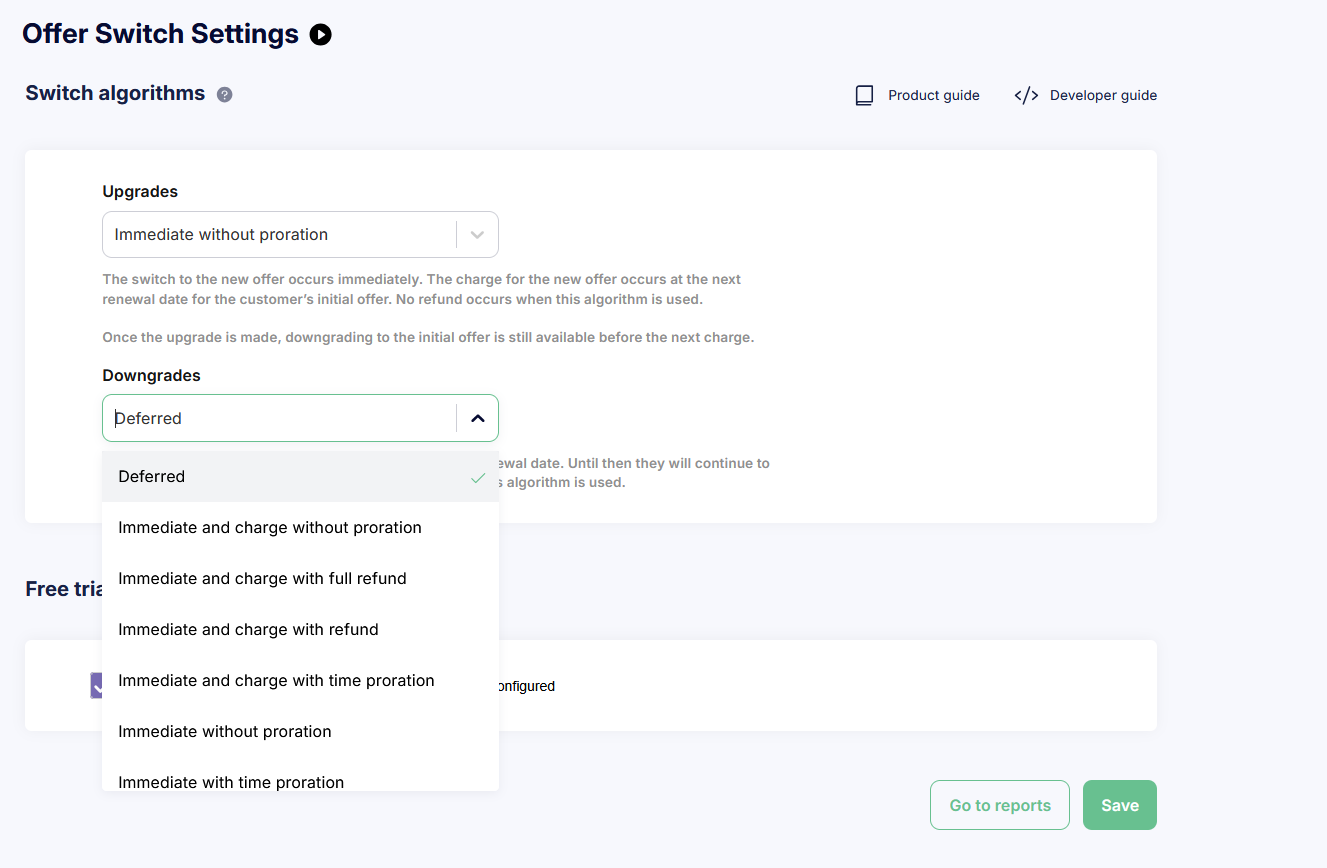
Go to Offers & Coupons > Offer switch settings. Set the downgrade algorithm to deferred so the switch happens at the end of the billing cycle - the customer keeps access to the discounted plan until their next billing date, then switches to the standalone plan and is charged at the new price.
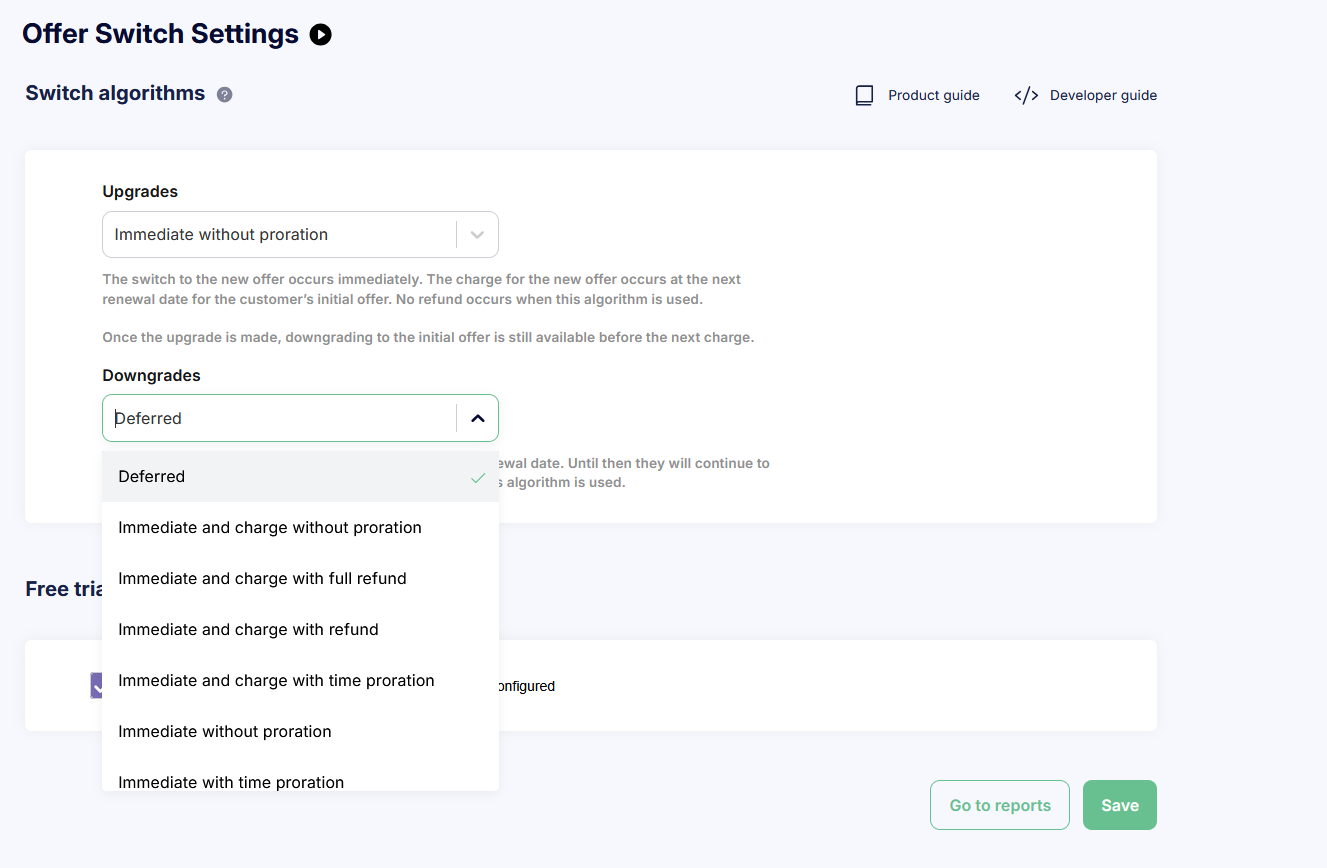
Cleeng Dashboard > Offer Switch Settings > Downgrade Algorithms
NoteIf you are using Cleeng transactional emails, there are no dedicated email notifications for the add-on switch. The subscriber will receive a standard subscription switch notification.
7. Verify Entitlement API access
Confirm your implementation can call the entitlement endpoint to verify base offer ownership:
GET/3.1/entitlements/{customerId}/{offerId}
This endpoint confirms whether a customer has active access to the required base offer before your storefront reveals the discounted add-on.
Script flow
The storefront should implement the following logic to control add-on visibility and handle purchases:
Front-end flow
- Retrieve all available offers and inspect each offer's
externalProperties. - Display independently purchasable base offers in the standard catalog.
- Offers marked with
add_on=trueorvisibility=hidden- exclude from default rendering. - When a logged-in customer views a related catalog area, read
required_base_offerfrom each hidden add-on. - Call
GET /3.1/entitlements/{customerId}/{offerId}(whereofferId= base offer ID) to check eligibility. - If entitlement exists, reveal the discounted add-on offer.
- Customer purchases through standard Cleeng checkout - no special mechanics needed.
Downgrade automation script
For handling base subscription cancellations, create a job that periodically runs:
Step 1: List subscriptions to discounted add-on offers
GET/3.1/subscriptions?{customerId}&{offerId} (where offerId= add-on offer ID)
Step 2: For each active subscription, check base entitlement
GET/3.1/entitlements/{customerId}/{offerId} (where offerId = base offer ID)
Step 3: If base entitlement is gone and no pending switch, schedule deferred switch
POST/3.1/subscription_switches
{
  "subscriptionId": "abc",
  "toOfferId": "S123456789_ES", // = standalone offer ID
  "switchDirection": "downgrade",
  "algorithm": "DEFERRED",
  "fromOfferId": "S987654321_ES" // = add-on offer ID
}
NoteWebhook notification
subscriptionStoppedcan alternatively be used as a near-real-time trigger for scheduling switches. However, webhooks may not always be delivered - we recommend running the periodic script as a safety net.
Downgrade handling
Two downgrade paths are supported. Both are driven by metadata on the add-on offer and use standard Cleeng subscription operations.
- Keep original base offer subscription active.
- Cancel the discounted add-on subscription per cancellation policy.
- Re-hide the discounted add-on offer if eligibility still exists after the change.
- Cancel the original qualifying base subscription.
- Read
corresponding_base_offerfrom add-on metadata. - Schedule a deferred switch from discounted to full-price standalone offer.
- After switch takes effect, treat customer as standard standalone subscriber.
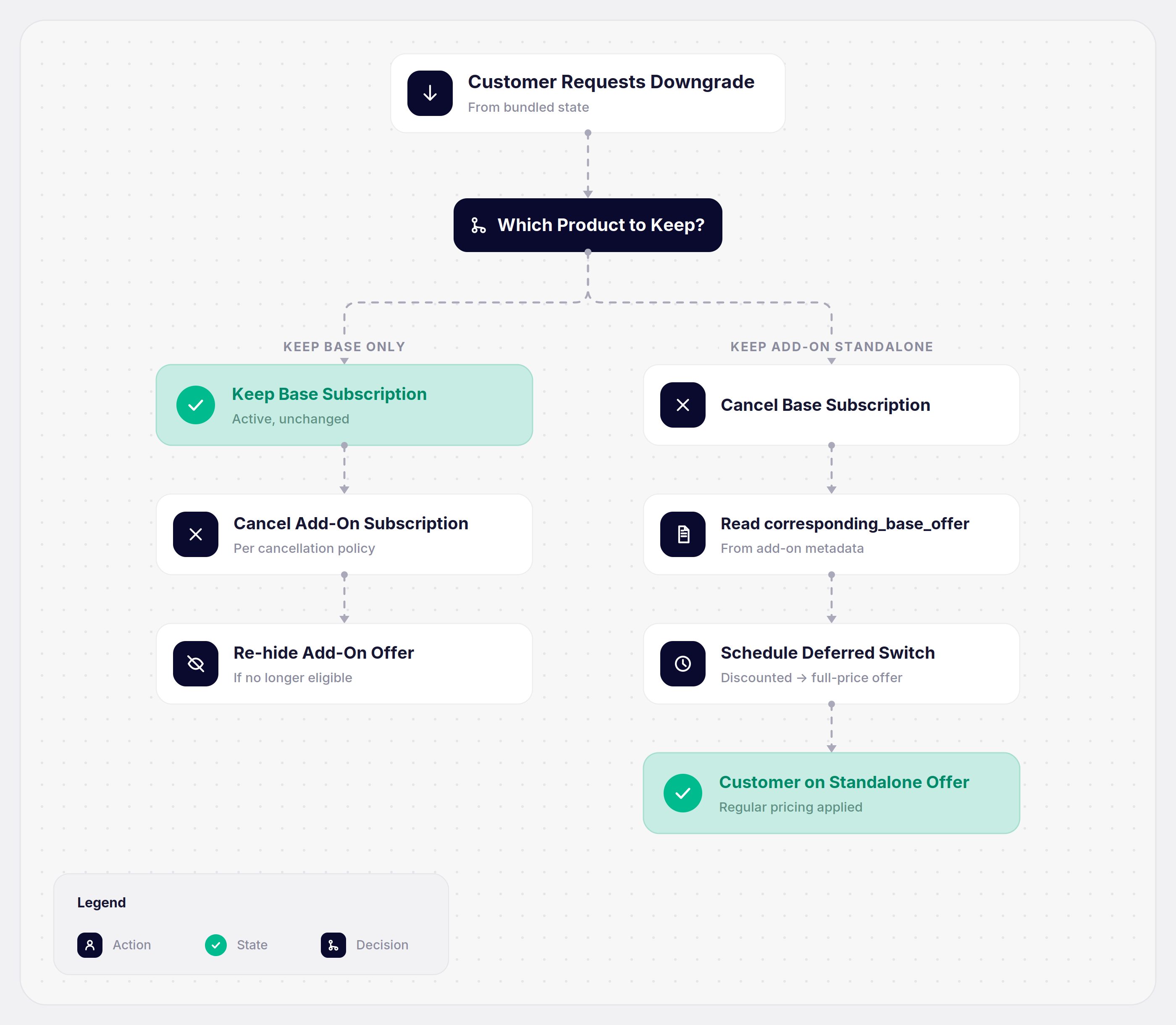
Key PrincipleDiscounted pricing remains available only while the qualifying base offer is active. Once that prerequisite ends, the customer either loses the add-on or continues on its regular standalone offer through a deferred switch.
Cancellation handling
If a customer cancels the base offer and there is no standalone offer defined for the add-on offer, the add-on offer gets canceled too.
Data & reporting
Since add-ons are modeled as separate Cleeng offers, publishers can track performance using standard Cleeng dashboard analytics. Here's what to monitor:
- Revenue per add-on offer vs. standalone offer
- ARPU uplift from add-on attach rate
- Revenue impact of deferred switches
- Add-on attach rate (add-on subs ÷ base subs)
- Conversion from base to base+add-on
- Churn rate comparison: bundled vs. base-only
- Deferred switches scheduled vs. completed
- Path A vs. Path B downgrade split
- Re-purchase rate after cancellation
- Script execution success rate
- Webhook delivery rate (if used)
- Pending switches backlog
Switch algorithm transitions are tracked in reports per offer, including deferred completion rates.
Reporting NoteBecause the discounted add-on is a separate offer, Cleeng reporting will treat it as its own purchasable product. The deferred switch from discounted to standalone will surface as a downgrade event in analytics. Plan your dashboards and KPIs accordingly.
Features & APIs used
| Area | Cleeng Feature / API | Role |
|---|---|---|
| Offer setup | Cleeng Offers | Create base offers and dedicated discounted add-on offers. |
| Offer metadata | Custom Offer Parameters | Flag hidden add-ons, define qualifying base offer via externalProperties. |
| Offer retrieval | Fetch / Get / List Offers | Read add-on flags and qualifying relationships from offer data. |
| Eligibility | Get Entitlements API | Confirm customer owns required base offer before exposing add-on. |
| Purchase | Standard Checkout / Order Flow | Complete purchase of the dedicated discounted add-on offer. |
| Subscription change | Subscription Management | Cancel discounted or qualifying subscription; orchestrate downgrades. |
| Data & Reporting | Dashboard Analytics | Track add-on subscriptions, revenue, and churn separately per offer. |
Testing
- Create all three offers (base, discounted add-on, standalone) on your sandbox environment with custom parameters.
- Purchase the base offer as a test customer.
- Verify the entitlement endpoint returns access for the base offer.
- Confirm the storefront reveals the discounted add-on only after login with entitlement.
- Purchase the add-on through standard Cleeng checkout.
- Verify
pendingSwitchIdisnullinitially on the add-on subscription. - Test Path A: cancel the add-on only - verify base remains active and add-on is re-hidden.
- Test Path B: cancel the base - run your script - verify deferred switch schedules correctly.
- Wait for end of billing period (use daily subscriptions on sandbox) and confirm the switch completes to the standalone offer at full price.
- Verify the customer cannot repurchase the discounted add-on after losing base entitlement.
Constraints & considerations
- This approach does not create a native product dependency inside the platform. The dependency is enforced by storefront logic using Cleeng metadata and entitlement APIs.
- Hidden add-on offers must not be discoverable through public storefront navigation - they should only surface after eligibility checks.
- Cleeng treats the add-on as a separate offer - reporting and lifecycle management reflect this.
- Consider how cancellations and re-purchases of the add-on are handled to prevent misuse.
- Ensure active promotional campaigns are not applicable to discounted add-on offers to prevent discount stacking. This can be done by setting offer ID restrictions in campaign setup.
Pro tips
- Test on sandbox before production.
- Inform subscribers that their discounted pricing is linked to the base subscription - make this clear at purchase time.
- Use
add_on_groupto logically group multiple add-ons across different base offers. - Consider webhook notifications (
subscriptionStopped) as a near-real-time trigger for deferred switches, supplemented by a periodic script as a safety net. - When designing the storefront, consider surfacing add-ons contextually - e.g. on the confirmation page after a base purchase or in the account management area.
Updated 3 months ago