

Google Play Billing
This tutorial will help you integrate Google Play in-app purchases using the Google Play Billing connector for Android devices, including phones, tablets, and Android TV.
ImportantAndroid in-app purchase integration with the new Google Play Billing connector supports auto-renewable subscriptions and one-time products. Subscriptions correspond to Cleeng subscription offers and one-time-products - to Cleeng passes.
Overview
The Google Play Billing connector lets you offer in-app subscriptions and one-time products in your Android applications (phones, tablets, Android TV) and have Cleeng manage the full subscriber lifecycle - entitlement, renewals, grace periods, account holds, pauses, and revocations.
Cleeng acts as an observer: Google handles the payment, and Cleeng records the purchase, keeps it in sync with Google's authoritative state, and controls access rights on your behalf.
The integration lives under Admin & Tools > Integration Hub > Google Play Billing V2 in the Cleeng Dashboard, and exposes a small REST API surface that your app or backend calls when a purchase happens.
It solves three publisher problems:
-
end-to-end visibility into the subscription lifecycle (instead of only seeing the initial payment),
-
consolidated cross-platform reporting, and
-
a reliable mechanism for re-assigning subscription ownership between customers.
Availability
| Plan | Cleeng Pro / Enterprise |
| Integration type | In Apps (native Android) |
| Offer types | Auto-renewable subscriptions and one-time products |
| Platforms | Android phones, tablets, Android TV |
| MoR | Google is the Merchant of Record for in-app payments |
Main Benefits
-
Full subscription lifecycle coverage - 18+ Google notification types processed automatically (vs. 4 in the legacy integration), including grace period, account hold, pause/resume, and revocation.
-
Real-time entitlement sync - purchases are verified and reflected in Cleeng without polling Google manually; lifecycle changes propagate via Real-Time Developer Notifications.
-
Cross-platform reporting parity - same level of analytics and tracking as Apple StoreKit 2.
-
Subscription ownership transfer - re-assign an active subscription from one customer to another via a dedicated endpoint.
How It Works
-
The user buys a subscription or a one-time product in your Android app via Google Play Billing Library.
-
Your app calls Cleeng's
POST /purchasesendpoint with the Google purchase token. -
Cleeng verifies the purchase against Google's V2 API, creates the subscription record, and grants entitlement asynchronously. Your app polls a status endpoint, listens to a webhook, or both.
-
From there, Cleeng listens to Google's Real-Time Developer Notifications (RTDN) and keeps the subscription in sync - no further action required from your app for renewals or lifecycle events.
-
If a subscription needs to move to a different customer, your backend calls
POST /purchases/transfers.
Prerequisites
Before you start, make sure you have:
-
A Google Play developer account and a published (or test-track) Android app - see Google Docs.
-
Subscription products and/or one-time products defined in Play Console (Subscription > Base Plan > Offer hierarchy; One-time product > Purchase Option > Offer hierarchy).
-
A Google Cloud service account with Google Play Android Developer API access and the following Play Console permissions: View financial data, orders, and cancellation survey responses and Manage orders and subscriptions.
-
A Google Cloud Pub/Sub topic for Real-Time Developer Notifications.
-
A Cleeng publisher account on the Pro or Enterprise plan.
Note
Google credentials can take up to 24 hours to become valid. If you added in-app products before granting the service account permission, you may need to make a change to those products (for example, create and activate a new product) for receipt validation to start working.
How to create a Google service account key
Cleeng requires a service account key in JSON format to validate Google Play purchases and keep subscription state synchronized between Google Play and Cleeng. The Google Cloud service account must have permission to call the Google Play Android Developer API on behalf of your Play Console account.
Follow the steps below to create the service account and download the JSON key.
-
In the Google Cloud Console, select the correct project and confirm that access to the Google Play Android Developer API is enabled (the button reads Enable when disabled and Manage when already enabled).
-
Open Service Accounts and click Create service account. Walk through the wizard:
2.1 Copy the generated Service account ID (email address) - you will need it in step 2.5.
2.2 Under Grant this service account access to project, select Basic > Owner.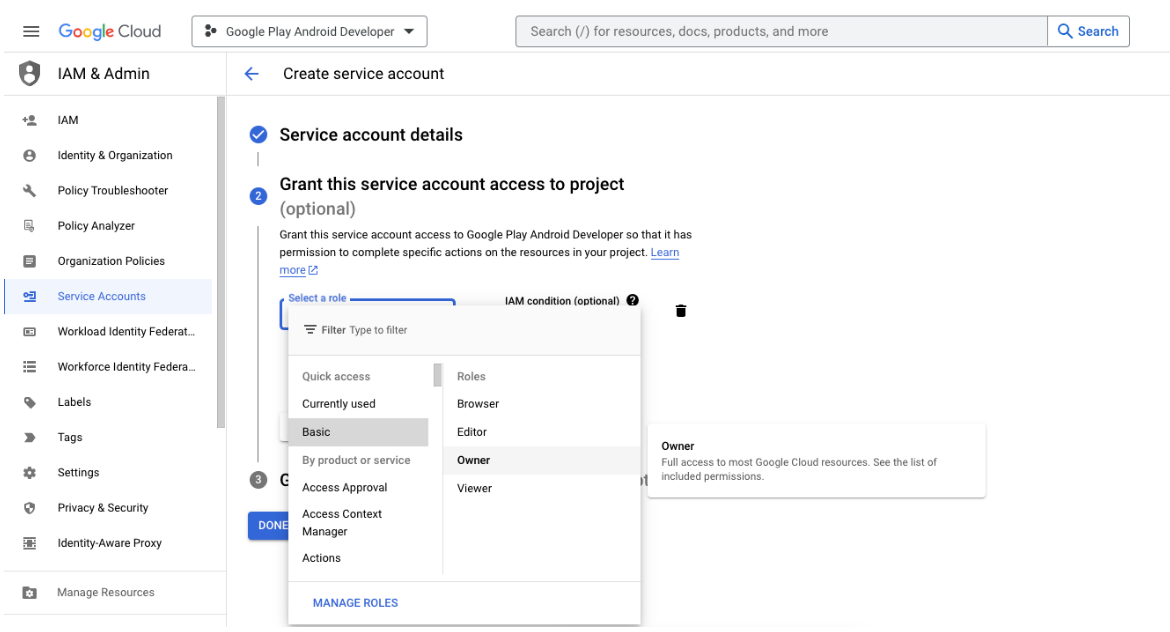
Google Cloud Console: Grant this service account access to project
The service account now exists in Google Cloud. Next, grant it access to your Google Play Console.
2.3 Open the Users & Permissions page in the Google Play Console.
2.4 Click Invite new users.
2.5 Enter the service account email from step 2.1 and grant the following Play Console permissions:
a. View app information and download bulk reports (read-only)
b. View financial data, orders, and cancellation survey responses
c. Manage orders and subscriptions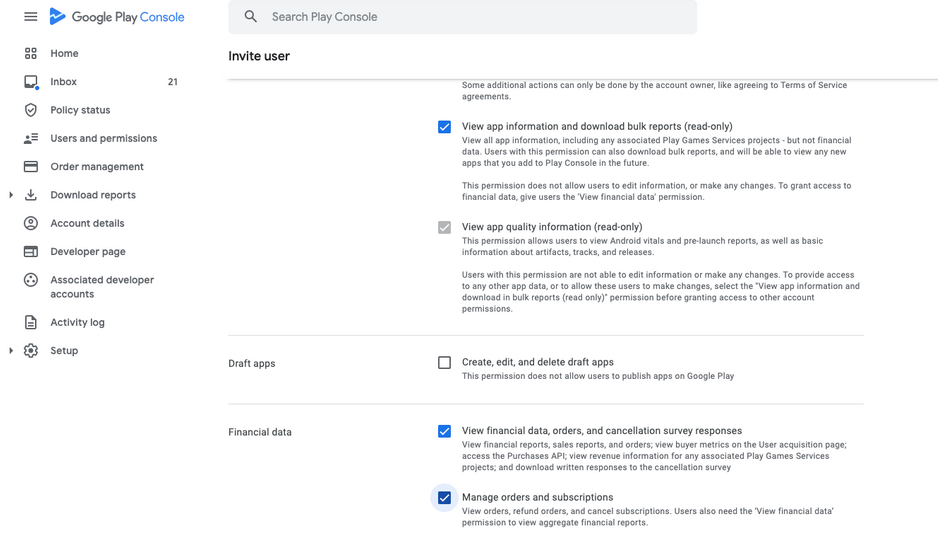
Google Play Console: Granting permissions
2.6 Click Invite user to finish. The service account can now access the Google Play Developer API. To use it, generate a JSON key.
2.7 Back in the Google Cloud Console, open Service Accounts again.
2.8 Click the service account email, then:
a. Open the Keys tab.
b. Click Add Key.2.9 Choose Create new key from the drop-down.
2.10 Pick JSON as the Key type and click Create. The JSON key downloads automatically - store it securely; it cannot be downloaded again. Paste its contents into the Service account JSON key field in the Cleeng Dashboard (see Configure the connector).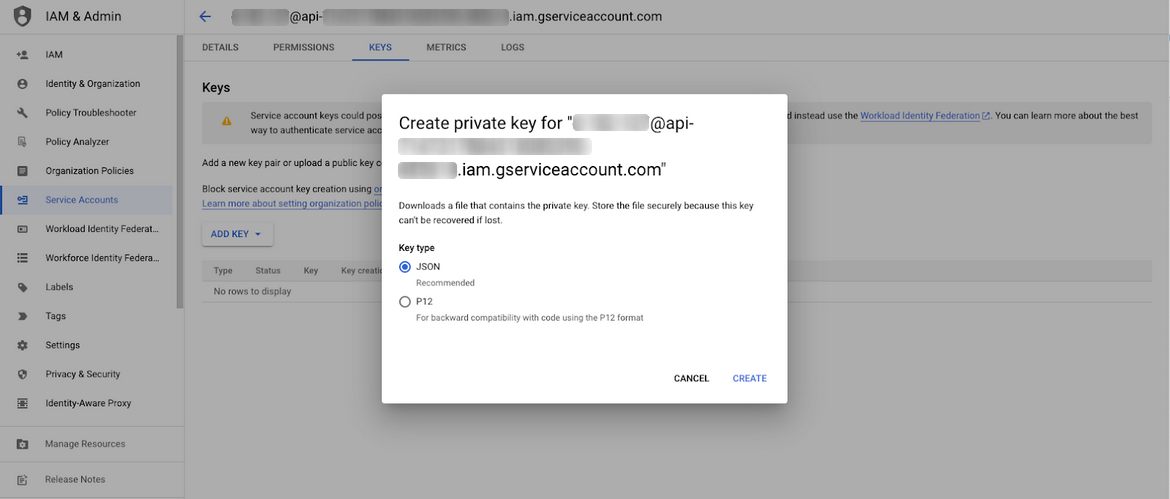
Google Cloud Console: Creating a service account key
For background reading, see Google's getting-started guide.
Step-by-Step Guide
1. Configure the connector in the Cleeng Dashboard
-
Log in to the Cleeng Dashboard.
-
Map your Google Play products to Cleeng offers. Each Google Play subscription has a
productIdand one or more base plans, each identified by abasePlanId. In Cleeng, everyproductId/basePlanIdpair maps to a single Cleeng offer.For each base plan you want to sell:
-
Take the subscription's
productIdand thebasePlanIdof the base plan from Google Play Console. -
Combine them in the form
{productId}/{basePlanId}. -
In the Cleeng Dashboard, open the corresponding Cleeng offer, add the resulting identifier under App store product IDs, and set the app store option to Android.
Example: a subscription with
productId = "plan_premium"and an annual base plan withbasePlanId = "annual"should be linked to its Cleeng offer with the identifierplan_premium/annual.
Backward compatibilityIf you already use the legacy approach where the identifier under App store product IDs is the bare
productId(nobasePlanIdsuffix), it remains supported. Existing purchases continue to be reported correctly without any change on your side. You only need to switch to the{productId}/{basePlanId}form if you want different base plans of the same subscription to map to different Cleeng offers.Upgrades and downgrades are configured separately - see Subscription upgrades and downgrades. All offer mappings must be in place before activating the integration - otherwise incoming purchases cannot be resolved to a Cleeng offer.
-
-
Go to Admin & Tools > Integration Hub > Google Play Billing V2.
-
Fill in the configuration form.
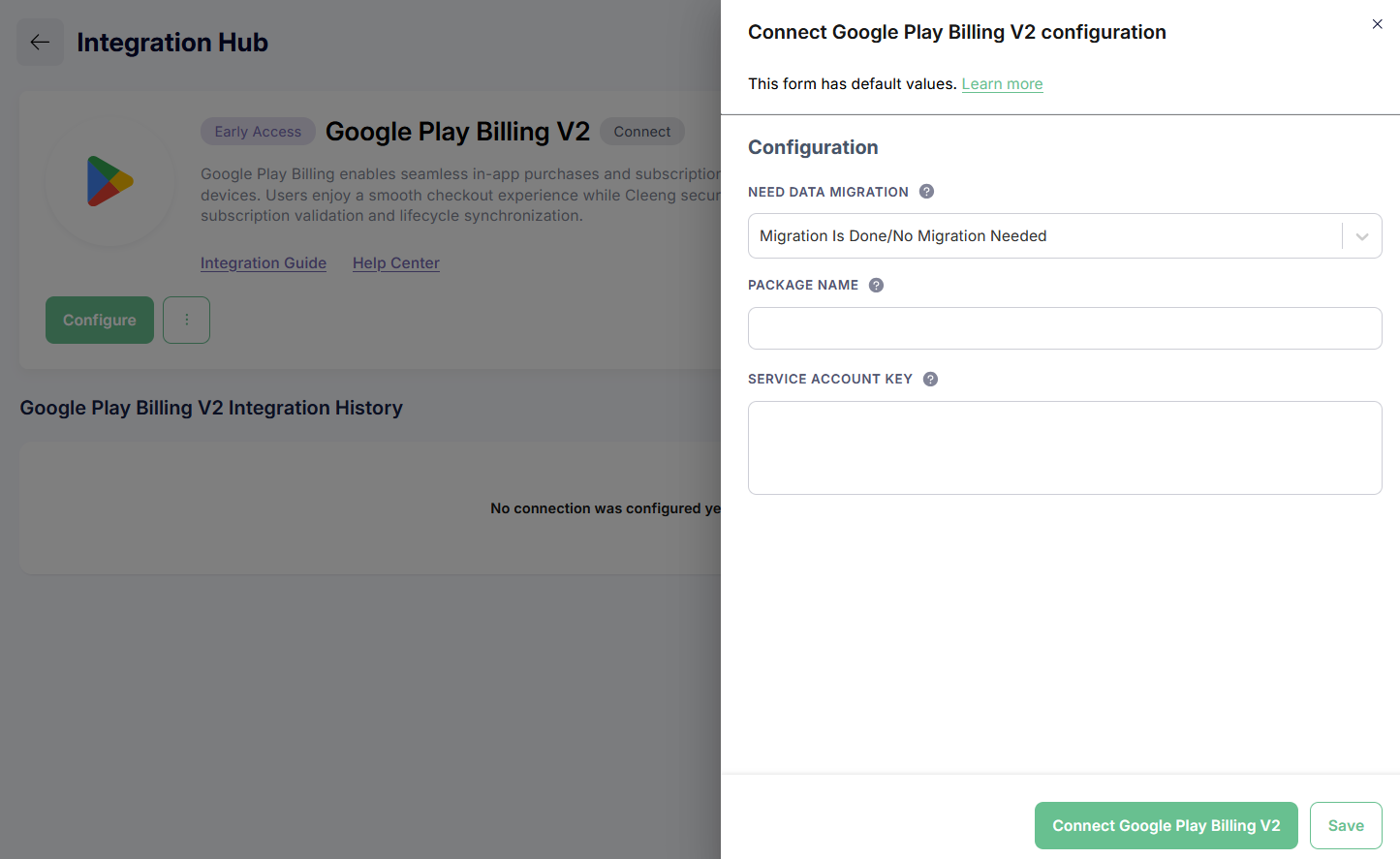
Cleeng Dashboard: Google Play Billing Configuration
All three fields are required:
-
Do you need to migrate data? Pick the option that matches your situation:
-
Migration is done / No migration needed - default. Choose this if you are onboarding directly to the new connector with no legacy Android in-app data.
-
Migrate data from the legacy connector or Migrate data to Cleeng - choose one of these only when Cleeng is coordinating a data migration for your publisher account. While either migrating value is selected, purchase and notification events are buffered and replayed once the migration is marked done.
-
-
Package name - the Android application package name as registered in Google Play Console (for example,
com.example.app). This value must match thepackageNameyour app sends in eachPOST /purchases andPOST /purchases/transfersrequest, and thepackageNamepublished in every Real-Time Developer Notification. -
Service account JSON key - paste the JSON key generated for your Google Cloud service account (the same key used to grant Cleeng access to the Google Play Android Developer API).
Important - migrating from the legacy Google Play connector?If you are currently using the legacy Google Play integration in Cleeng Core, do not activate the configuration yet.
Save the form with “Do you need to migrate data?” set to Migrate data from the legacy connector and leave the integration deactivated until the scheduled migration call with the Cleeng Support Team.
Activating before migration starts will route live traffic to the new connector before any data has been migrated, leaving the new connector with no record of your existing subscriptions. See the Seamless Migration section below for the full step-by-step migration flow.
-
-
Click Connect to save and activate the integration.
2. Set up Real-Time Developer Notifications
Real-Time Developer Notifications (RTDNs) are one-way push messages from Google Play to Cleeng. They keep the subscription state in Cleeng aligned with Google's authoritative state without any polling from your app - renewals, cancellations, grace period transitions, account holds, pauses, revocations, and refunds are all delivered as RTDN events.
The connector listens for RTDNs on the following endpoints. Replace {publisherId} with your Cleeng publisher ID:
| Environment | Notification URL |
|---|---|
| Production | https://inapp.api.prod.cleeng.com/google-play/notifications/broadcasters/{publisherId} |
| Sandbox | https://inapp.api.sandbox.cleeng.com/google-play/notifications/broadcasters/{publisherId} |
Migrating from the legacy connector?If you currently send RTDNs to the legacy v2.0 URL (https://notification.cleeng.com/2.0/in_app/subscriptions/android/status_update_notification/heme="warn">
), switch to the seamless URL - see the Seamless Migration section - so the same endpoint keeps working before and after the cut-over. The deprecated v1.0 URL is not covered by seamless routing.
Supported notification types
The new connector processes the full subscription notification surface. The table below lists each notificationType value (per Google's RTDN reference) and how Cleeng handles it:
| Type | Notification | Cleeng behavior |
|---|---|---|
| 1 | SUBSCRIPTION_RECOVERED | Subscription recovered from account hold - entitlement restored. |
| 2 | SUBSCRIPTION_RENEWED | Renewal recorded; next billing cycle and payment captured. |
| 3 | SUBSCRIPTION_CANCELED | Cancellation flagged; subscription remains active until expiryTime. |
| 4 | SUBSCRIPTION_PURCHASED | Used for upgrades and downgrades. For initial purchase, your app must still call POST /purchases. |
| 5 | SUBSCRIPTION_ON_HOLD | Subscription moved to account hold - entitlement revoked until recovery. |
| 6 | SUBSCRIPTION_IN_GRACE_PERIOD | Grace period started - entitlement preserved while Google retries billing. |
| 7 | SUBSCRIPTION_RESTARTED | Restart after user-initiated cancellation; subscription continues. |
| 9 | SUBSCRIPTION_DEFERRED | Deferred billing change applied - next billing date updated. |
| 10 | SUBSCRIPTION_PAUSED | Pause took effect - entitlement suspended. |
| 11 | SUBSCRIPTION_PAUSE_SCHEDULE_CHANGED | Scheduled pause start/end updated. |
| 12 | SUBSCRIPTION_REVOKED | Subscription revoked (refund or developer-initiated) - entitlement removed. |
| 13 | SUBSCRIPTION_EXPIRED | Subscription expired - entitlement removed. |
| 19 | SUBSCRIPTION_PRICE_CHANGE_UPDATED | New price acknowledged at renewal. |
| 20 | SUBSCRIPTION_PENDING_PURCHASE_CANCELED | Pending purchase (deferred payment) was cancelled before approval. |
| — | VOIDED_PURCHASE | Refund/chargeback - entitlement updated to reflect the void. |
| 8, 17, 18, 22 | (Deprecated / no-op types) | Acknowledged to Google but require no state change in Cleeng. |
One-time-product notifications are handled on the same endpoint:
| Type | Notification | Cleeng behavior |
|---|---|---|
| 1 | ONE_TIME_PRODUCT_PURCHASED | Pass granted for the purchased product, with the expiry taken from the Cleeng offer. |
| 2 | ONE_TIME_PRODUCT_CANCELED | Pending purchase cancelled before payment completed - nothing is granted. |
| - | VOIDED_PURCHASE (one-time product) | Refund or chargeback - the Cleeng payment is refunded and the pass terminated. |
If Cleeng receives a one-time product notification before your app registers the purchase, the entitlement is held against an Unidentified User and reassigned to the real customer once your registration call arrives, finalizing it as PURCHASE_RESTORED. See Handling "Unidentified Users".
NoteGoogle does not send Real-Time Developer Notifications (RTDN) for "Refund only" events (where the customer is refunded but retains subscription access). Consequently, Cleeng system cannot detect or reflect these adjustments in real time .
You must refund and revoke access in order for Cleeng to detect this, as only refunding will not be detected. See Google's documentation.
Set up Pub/Sub in Google Cloud and Google Play Console
Follow the steps below to configure a Cloud Pub/Sub topic and push subscription that delivers RTDNs to Cleeng.
-
Log in to your Google Cloud Console.
-
Open the Pub/Sub topic list and select the Google Cloud project linked to your Android app.
-
Create a topic. The topic ID is up to you (for example, realtime_notification).
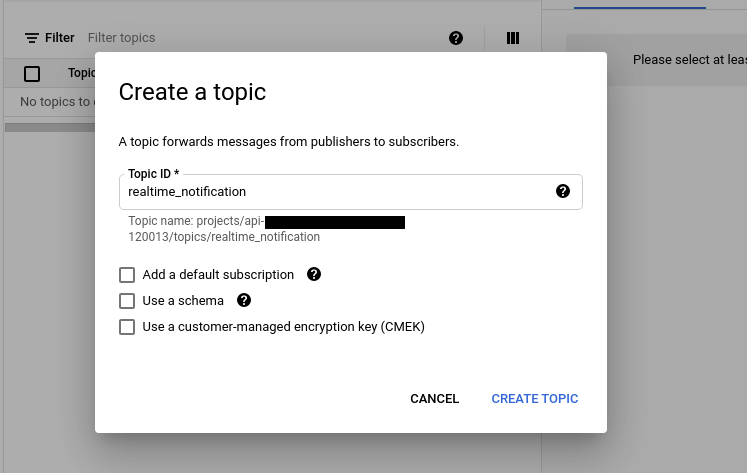
Create a topic
-
On the topic, create a subscription. The subscription ID is also free to choose.
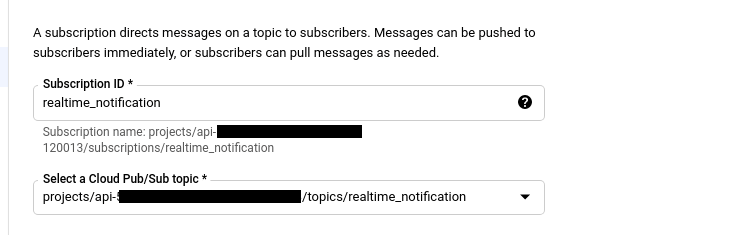
Create a subscription
Configure the subscription with:
- Cloud Pub/Sub topic: the topic you created in step 3.
- Delivery type: switch from Pull to Push and enter the Cleeng notification URL for your environment:
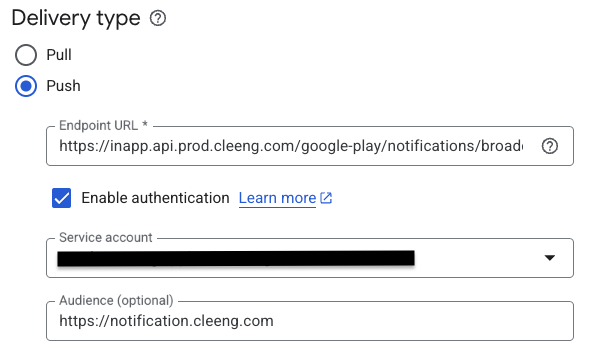
Delivery Type - Production Environment
-
Enable authentication: turn on JWT authentication. Choose your service account and set the Audience to the connector base URL:
-
Production: https://notification.cleeng.com
-
Sandbox: https://notification.sandbox.cleeng.com See Google's push authentication docs for details.
-
-
Retry policy: select Retry after exponential backoff delay with Google's recommended values.
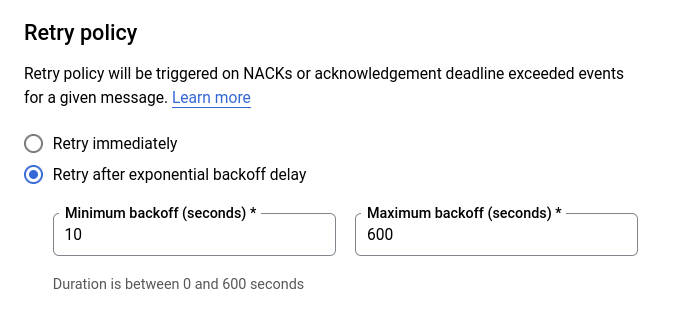
Retry policy
-
Return to the Topic list and open the View permissions panel for your topic.
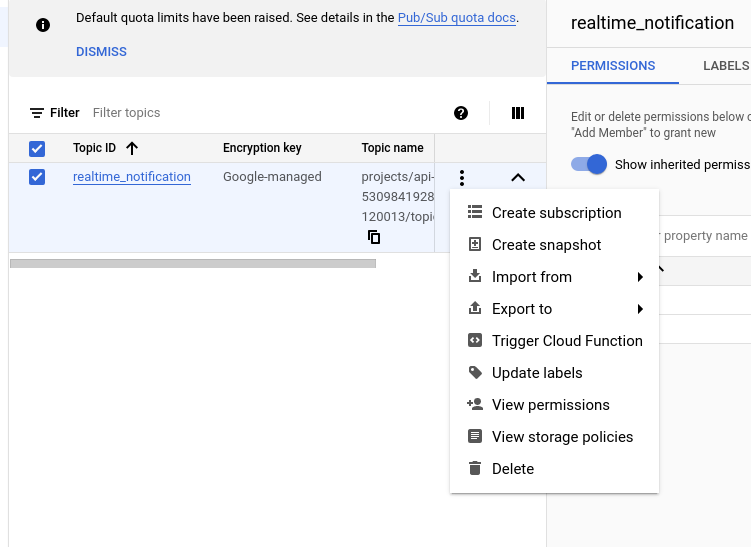
View permissions
-
Click Add principal and grant the Pub/Sub Publisher role to [email protected]. This lets Google Play publish RTDNs to your topic.
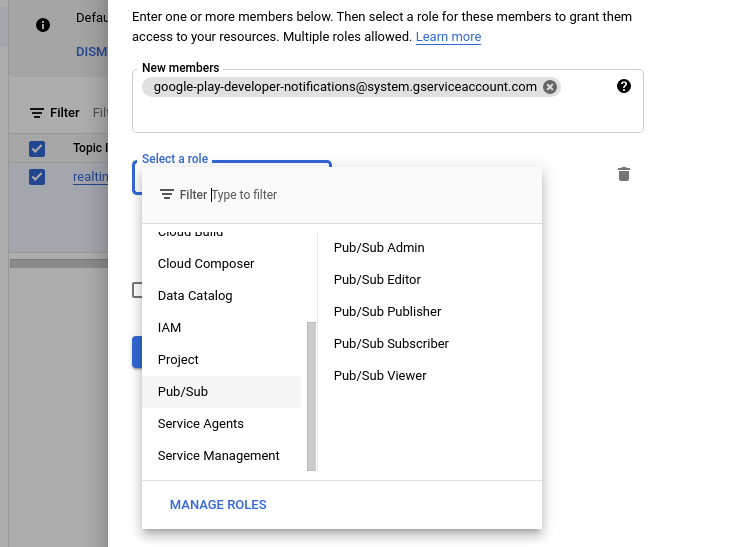
Add memeber
-
Open the Google Play Console and select your application.
-
Go to Monetization setup and paste the full topic name into the Real-time developer notifications field (you can copy it from the topic list in Google Cloud Console).
-
Click Send test notification. If Google reports success, save the settings - your RTDN pipeline is live.
3. Register purchases from your app
After a successful purchase in your app, call: POST /purchases .
| Environment | Base URL |
|---|---|
| Production | https://inapp.api.prod.cleeng.com/google-play |
| Sandbox | https://inapp.api.sandbox.cleeng.com/google-play |
Authentication: send either Authorization: Bearer {jwt} (client integration) or X-Publisher-Token (server-to-server). Always include the X-Publisher-Id header.
Request body:
{
  "cleengCustomerId": 123456789,
  "purchaseToken": "oepjlkkldmo...",
  "packageName": "com.example.app",
  "productType": "subscription"
}
productType must be subscription or one_time_product Any other value is rejected with HTTP 400.
Response - 202 Accepted:
{
  "message": "Purchase accepted for processing",
  "synchronizationId": "e45211af-6360-4ff9-9a97-3f2392fe355e"
}
The endpoint is asynchronous. Use the returned synchronizationId to check status.
4. Receive the result
Once the purchase is registered, get the outcome in one of two ways (or both):
- Polling -
GET /purchases/synchronizations/{synchronizationId}. The response containsstatus(processing,retrying, orfinalized), and once finalized, anaccessGrantedflag,offerId, and aresultcode. Typical synchronization finalizes within 5–10 seconds. See more details on polling statuses below. - Webhook - subscribe to the
inappPurchaseSyncResulttopic in your webhook configuration. The payload arrives once per synchronization, when the record is finalized, and includes the same fields as the polling response plus the original purchase context. In addition, the usual Cleeng subscription lifecycle topics are emitted for subscriptions.
The sequence diagram below shows both flows running in parallel after a single POST /purchases call:
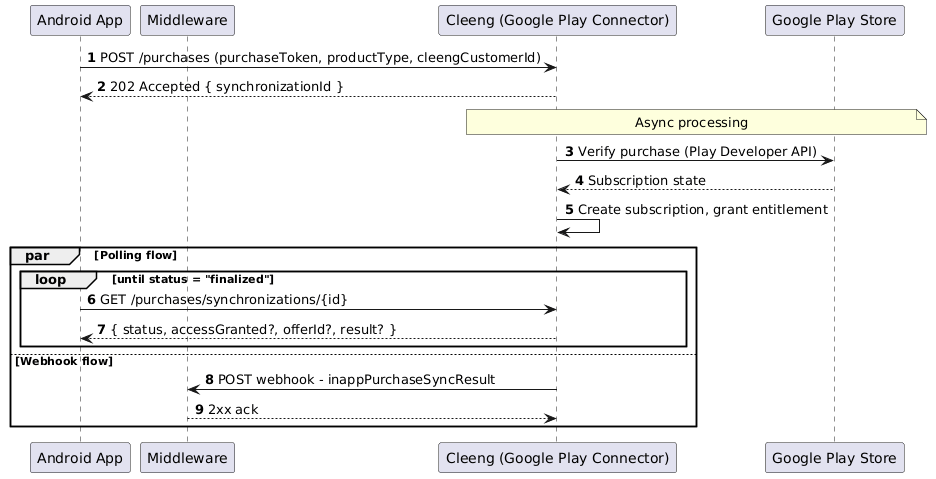
Polling gives immediate UI feedback while the user waits; the webhook guarantees finalization even if the app is backgrounded or polling times out. Combine both for the most reliable client experience.
Tip: Checking entitlement directlyYou can also call the standard Cleeng GET /entitlements endpoint. It returns the customer's entitlement state for an offer independently of the synchronization flow - useful as a fallback or as the source of truth for gating UI. Entitlements are updated only after the asynchronous synchronization process has completed.
While temporarily caching the entitlement is not mandatory, it is strongly recommended to enhance the user experience and ensure immediate access to content. Since purchase registration depends on an external API, there may be some delay before the process is completed and the access is granted permanently.
Polling statuses
Here are the possible scenarios and the corresponding response fields:
| status | accessGranted | offerId | result | Description |
|---|---|---|---|---|
| processing | no | The synchronization is still in progress. | ||
| retrying | no | The synchronization encountered an error and is being retried. | ||
| finalized | true | yes | PURCHASE_SYNCHRONIZED | Purchase was successfully synchronized, and access was granted. |
| finalized | true | yes | PURCHASE_OWNERSHIP_TRANSFERRED | Purchase was successfully transferred to a new customer. |
| finalized | true | yes | PURCHASE_OWNERSHIP_UNCHANGED | Transfer targeted the customer who already owned the purchase - no change. |
| finalized | true | yes | PURCHASE_RESTORED | Purchase was reassigned from an unidentified customer to the requesting customer. |
| finalized | false | no | RECEIVED_EXPIRED_PURCHASE | Google reported the purchase token as expired during synchronization. |
| finalized | false | no | PURCHASE_TOKEN_NOT_FOUND | The purchase token was not found in Google Play. |
| finalized | false | yes | ACCESS_EXPIRED | The user's access was terminated as part of the synchronization. |
| finalized | false | no | OWNED_BY_ANOTHER_USER | The purchase is already owned by another identified customer; transfer required. |
| finalized | false | no | SYNCHRONIZATION_UNPROCESSABLE | An unexpected condition prevented synchronization. Likely needs support. |
| finalized | false | no | PRODUCT_TYPE_NOT_SUPPORTED | The product type is not supported by the connector. |
| finalized | false | no | MISSING_OFFER_MAPPING | No Cleeng offer is configured for the purchased product, or it has no entitlement. |
5. Transfer a subscription between users (when needed)
If a registered purchase is already owned by a different Cleeng customer, the synchronization returns result: OWNED_BY_ANOTHER_USER. To re-assign ownership, call: POST /purchases/transfers
{
  "targetCustomerId": 999,
  "purchaseToken": "oepjlkkldmo...",
  "packageName": "com.example.app",
  "productType": "subscription"
}
The endpoint is asynchronous and returns a synchronizationId to poll. Possible results:
PURCHASE_OWNERSHIP_TRANSFERRED- ownership moved to the target customer; the new owner is entitled.PURCHASE_OWNERSHIP_UNCHANGED- the target customer already owned the subscription; treat as success.
NoteTransfer is an ownership-only operation. It does not call Google Play and does not trigger a fresh synchronization - Google's view of the purchase is unchanged.
6. Keep subscribers synchronized (automatic)
Once a purchase is registered, Cleeng processes all subscription lifecycle events from Google's Real-Time Developer Notifications (RTDNs) automatically. Your app does not need to call any further endpoints to keep entitlements up to date.
The connector handles renewals, cancellations, grace periods, account holds, pause/resume, revocations, expirations, deferred billing, price-change notifications, and voided purchases (refunds). One-time product RTDNs are acknowledged to Google but otherwise ignored.
Purchase Acknowledgement
When using the V2 Google Play connector, the Client application does not need to acknowledge the purchase manually. The connector acknowledges the initial purchase automatically.
Acknowledgement is required because Google Play refunds and revokes any purchase that is not acknowledged within three days (see Google Documentation). The V2 connector handles this for you.
Testing
Use the sandbox environment for end-to-end validation:
| Environment | Base URL |
|---|---|
| Sandbox | https://inapp.api.sandbox.cleeng.com/google-play |
To test the integration:
- Configure a Google Play test environment.
- Create a Cleeng sandbox account (or log in if you have one) and create a matching test offer.
- Make sure the Google product and Cleeng offer are mapped in the sandbox Dashboard.
- Upload the sandbox service account JSON key in the Cleeng Dashboard.
- Set up the Pub/Sub push subscription pointing to the sandbox notification URL.
- Send a test notification from Play Console to verify connectivity.
- Make a test purchase in your app and verify entitlement is granted.
Scenarios to cover:
- Initial subscription purchase.
- Recurring renewal.
- Failed payment → grace period → account hold → recovery.
- User-initiated cancellation and subsequent expiration.
- Pause and resume.
- Upgrade and downgrade between plans.
- Purchase restoration (reinstall or device switch).
- Subscription ownership transfer (including the
PURCHASE_OWNERSHIP_UNCHANGEDno-op case).
Additional Features
- Idempotent retries - requests are deduplicated by
purchaseToken. If a synchronization is already in progress for the same token, the API returns409 Conflictwith the existingsynchronizationIdso your client can resume polling without creating a duplicate record. Safe to retry on network errors or app crashes. - Crash recovery - on every app launch, call
BillingClient.queryPurchasesAsync()and re-submit any unprocessed purchases toPOST /purchases. Idempotency ensures no double-processing.
Common Errors & Troubleshooting
| Result / Error | Cause | What to do |
|---|---|---|
PURCHASE_TOKEN_NOT_FOUND | Token is not recognised by Google Play. | Verify the token comes from a valid Purchase object; refresh via queryPurchasesAsync(). |
RECEIVED_EXPIRED_PURCHASE | Token belongs to an expired or refunded purchase. | Do not retry. Prompt the user to make a new purchase. |
OWNED_BY_ANOTHER_USER | The purchase is linked to a different Cleeng customer. | Prompt the user to confirm transfer, then call POST /purchases/transfers . |
PRODUCT_TYPE_NOT_SUPPORTED | Provided product type in the request is not supported. | Check offer mapping in the Cleeng Dashboard. |
MISSING_OFFER_MAPPING | No Cleeng offer mapped, or the mapped offer has no entitlement configured. | Make sure that all products from Google Play Console are mapped to appropriate Cleeng offers (see point 2 in the Configure the connector in Cleeng Dashboard section). |
PACKAGE_NAME_MISMATCH (HTTP 422) | The packageName in the request is not configured for your publisher. | Verify the packageName matches a profile in the Cleeng Dashboard. |
RESOURCE_TEMPORARY_LOCKED_FOR_PROCESSING (HTTP 409) | A synchronization is already in progress for the same purchaseToken. | Not an error - extract synchronizationId from the response and resume polling. |
| HTTP 400 | Request body is invalid or productType is neither subscription nor one_time_product. | Check required fields (cleengCustomerId, purchaseToken, packageName, productType). |
Good to Know
Handling "Unidentified Users"
If Cleeng receives a Real-Time Developer Notification (RTDN) for a successful transaction from Google Play, but your Android application fails to send the matching Purchase Registration API call, Cleeng creates a temporary placeholder account known as an Unidentified User.
While the payment is safely recorded in our system, content access is not granted to the user until this registration call is successfully received to sync the user's details. To ensure a seamless viewing experience on Android devices, it is critical that your application consistently triggers the Purchase Registration API to complete the purchase flow.
For more details on how these placeholder accounts work, how to identify them, and how to reconcile them, please read our comprehensive guide on Understanding Unidentified Users in In-App Purchases.
FAQs
Q: Are one-time products supported?
A: Yes. Send productType=one_time_product to /purchases. The entitlement is granted as a Cleeng pass. The pass expiry is taken from the Cleeng offer's entitlement configuration (a fixed date, or a duration counted from the purchase), never from Google. A product with no matching Cleeng offer, or a matched offer with no entitlement configured, finalizes as MISSING_OFFER_MAPPING and grants no access.
Q: What happens when a one-time product is refunded or consumed?
A: A refund or cancellation in Google terminates the pass and refunds the recorded Cleeng payment. A quantity-based partial refund keeps the pass active while refundable units remain. A product Google reports as consumed also terminates the pass. All three are detected from Google's own state, so no extra call from your app is needed.
Q: Do I need to update my app immediately when my publisher account is migrated to the new connector?
A: No. The legacy POST /android/payment endpoint and the legacy RTDN URL continue to work via a seamless routing layer. You can migrate to the new endpoints at your own pace.
Q: Can I use polling and the webhook together?
A: Yes - we recommend it. Polling gives immediate UI feedback while the user waits; the webhook guarantees finalization even if the app is backgrounded or polling times out.
Q: What happens if my app crashes after Google confirms the purchase?
A: Call queryPurchasesAsync() on every app launch. Re-submit any unprocessed purchases to POST /purchases - idempotency by purchaseToken ensures no double-processing.
Q: Are voided purchases (refunds) reconciled automatically?
A: Yes. Cleeng listens to Google's voided-purchase notifications and updates entitlement automatically.
Q: What types of refunds can Cleeng detect?
A: Cleeng can only detect refunds with entitlements revocations. Refunds without entitlement revocation (where the customer gets their money back, but keeps subscription access) will not be detected. See Google's documentation for more information.
Seamless Migration
NoteThis section applies only to publishers who are currently using the legacy Google Play integration in Cleeng Core (
POST /android/paymentand the v2.0 Pub/Sub notification URL).Publishers onboarding directly to the new connector should skip this section.
For publishers already on the legacy Google Play connector, Cleeng ensures a smooth transition to the new connector with no Android app changes required.
A gateway-level routing layer fronts the legacy POST /android/payment endpoint and the legacy v2.0 Pub/Sub notification URL, and forwards traffic to either the legacy connector or the new connector based on the per-publisher configuration in the Cleeng Dashboard.
During the migration window itself, incoming purchases, transfers, and Real-Time Developer Notifications are buffered in Cleeng and replayed once data migration finishes - no message loss.
How It Works
- Routing decision - for each request, the seamless routers look up the Google Play Billing V2 configuration for your publisher. If the configuration is inactive (or absent), traffic continues to be handled by the legacy connector. If it is active, traffic is routed to the new connector.
- Deferral during migration - when Do you need to migrate data? is set to either Migrate data from the legacy connector or Migrate data to Cleeng, Cleeng accepts each incoming event, and returns success to the caller but holds it rather than applying it. No subscription is created or modified yet.
- Automatic resume - when you switch Do you need to migrate data? to Migration is done / No migration needed and save, Cleeng automatically replays every held event. No manual replay required.
Step-by-Step Guide
The migration requires coordinated actions from the publisher and Cleeng. The table below lists the order of steps and who owns each one.
| Action | Owner | |
|---|---|---|
| 1 | Initial setup Complete the Prerequisites and fill the Google Play Billing V2 configuration profile in the Cleeng Dashboard (Admin & Tools > Integration Hub > Google Play Billing V2). Fill in the Service account JSON key and Package name fields, and set Do you need to migrate data? to Migrate data from the legacy connector. Save the configuration but do NOT activate it yet - activation happens during the scheduled migration call. | Publisher |
| 2 | Pub/Sub endpoint update The update is safe at any time and reversible - while your | Publisher |
| 3 | Migration planning Contact the Cleeng Technical Support Team and agree on a migration date, choosing a time that minimises customer impact. Cleeng confirms and schedules the data migration accordingly. | Both |
| 4 | Activation & data migration From this moment, the seamless routers begin forwarding your traffic to the new connector, and every incoming purchase, transfer, and RTDN is buffered (no live processing yet). Cleeng runs the data migration job to import your existing subscription state from the legacy connector into the new connector. | Both |
| 5 | Resume processing Once Cleeng confirms the data migration is complete, switch Do you need to migrate data? from Migrate data from the legacy connector to Migration is done / No migration needed in the Cleeng Dashboard and save. Cleeng automatically replays every held event, oldest first. | Publisher |
| 6 | Sanity checks Both parties verify the migration: make a test purchase in the production app, confirm it appears in the Cleeng Dashboard for the correct customer, and verify the new Google Play Billing payment method is logged for the transaction. Confirm that webhook deliveries and RTDN-driven lifecycle updates continue as expected. | Both |
✔️ Migration complete. Your seamless transition to the new Google Play Billing connector is now finished. The legacy POST /android/payment endpoint and the legacy v2.0 Pub/Sub notification URL continue to work via the seamless routing layer - you can migrate your app to the new endpoints at your own pace.
Notes & Limitations
- The seamless purchase router supports re-routing of legacy
POST /android/paymenttraffic only. It does not perform implicit cross-customer transfers - if a registered purchase needs to be re-assigned to a different Cleeng customer after migration, use the newPOST /purchases/transfersendpoint directly. - During the migration window (between activation in step 4 and Migration is done in step 5), entitlement changes derived from new Google notifications are not visible until step 6 completes and the held events are replayed. Plan the migration window accordingly.
- Held events are retained for 30 days. If a migration is left in the Migrate data… state for longer than 30 days, older events may pass that window and would not be replayed.
Developer Checklist
- Google Play developer account configured; subscription and one-time products created.
- Google Cloud service account created with Android Developer API access.
- Service account JSON key uploaded in the Cleeng Dashboard.
- Google Play products mapped to Cleeng offers.
- Pub/Sub topic and push subscription configured with the Cleeng notification URL.
- Google Play Billing Library integrated in the Android app.
- App calls
POST /purchasesafter a successful billing flow. - Status check implemented via polling (
GET /purchases/synchronizations/{id}) and/orinappPurchaseSyncResultwebhook. -
OWNED_BY_ANOTHER_USERhandled withPOST /purchases/transfers. - Crash recovery implemented (
queryPurchasesAsyncon app launch). - End-to-end tested in sandbox.
- Go live.
Related Content
- Webhooks Guide - webhook topic catalogue and integration notes.
- Google Play Billing Documentation - Google's official Billing Library docs.
- Real-Time Developer Notifications Reference - Google's RTDN payload reference.
Updated about 2 months ago